How to see who's on your Wi-Fi
If your connection has slowed down, or you suspect the neighbours know your Wi-Fi password, it’s easy to check what’s connected.
Most routers keep a list of connected devices. Open 192.168.1.1 or 192.168.0.1 in a browser and look for a page called something like Connected devices or DHCP clients. It works, but you need the router password, every model puts the list somewhere different, and it rarely tells you what each device actually is.
Windows can give you a rough picture too. In Command Prompt, run arp -a to see the IPs your PC has talked to recently, with their hardware (MAC) addresses. The list isn’t complete, because a device that never talked to your PC won’t be in it.
The first half of a MAC address identifies the maker, such as Apple, Samsung or TP-Link, and many devices also announce a name like “Living-Room-TV”. Between the two you can usually tell what something is, and anything that appeared recently deserves a closer look.
Devices in Neshta
Neshta’s Devices page scans your local network and lists every device with its name, maker, IP and MAC. New devices are marked as new, the network is scanned again every 30 minutes, and Scan now checks it right away.
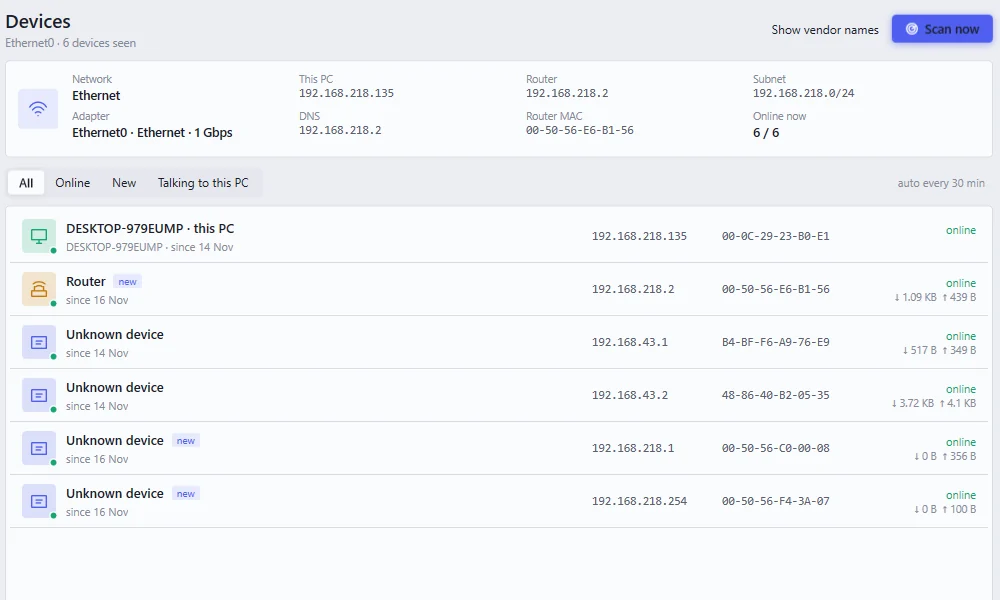
Give the devices you know a name, like “Dad’s phone”, so strangers stand out. On Pro you also get a notice when a new device joins or a known one leaves.
If you find something you don’t recognise, first make sure it isn’t a smart plug, TV or games console you forgot about. If it really is a stranger, change the Wi-Fi password, make sure the router uses WPA2 or WPA3 and turn off WPS, then scan again to check it’s gone. The rest of the router settings are covered in securing your home router.