App Control

Network access, under your control

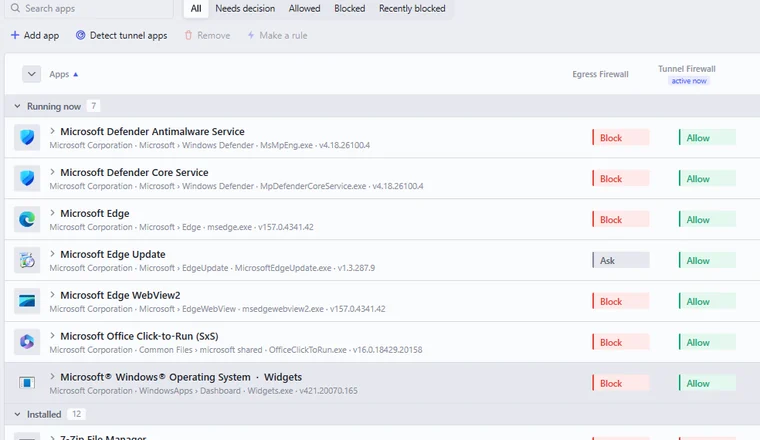
Neshta asks before any app goes online for the first time. Whatever you allow or block can be changed later.

Set different rules for each app depending on whether the tunnel is connected or disconnected. Keep your browser on the tunnel, while letting the tunnel app connect freely.

Inspect the addresses each app connects to and block them one by one. If an update breaks connectivity, Recently Blocked helps you find the cause in seconds.

Network access, under your control
Egress Firewall

The internet stops when the tunnel drops

Choose a tunnel adapter and let Neshta enforce it. If the tunnel goes down, internet traffic is stopped before it can bypass the tunnel.

VPN and tunnel applications remain free to reconnect, while printers, shared folders, and other local resources continue to work normally.

Protection starts with the system and runs independently of the interface, so it stays active even if the application is closed or the UI crashes.

Tunnel connectedTunnel dropped, internet blockedExit IP: NetherlandsYour real IP stays hidden
This PCBrowserTelegramSteam
Internet
Tunnel✕Wi-Fi / EthernetBlocked
Rules

Automate Network Decisions

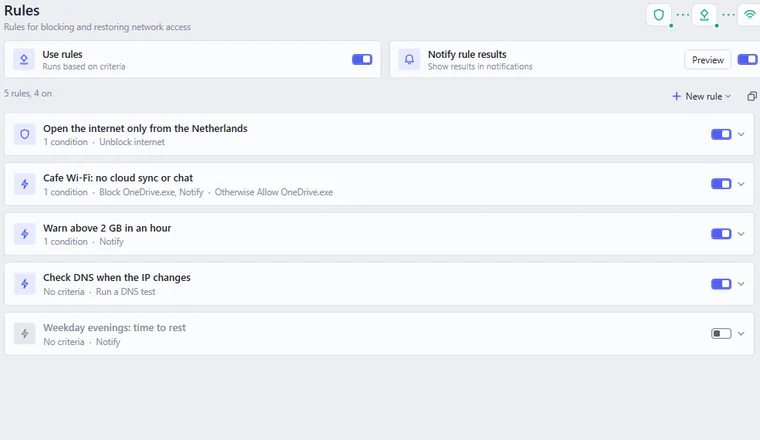
Let Neshta watch your network and react for you. Keep connections blocked until conditions are right, change behavior on different networks, or receive alerts when something needs attention.

Rules can respond to where you’re connected, which apps are running, how much data is being used, network quality, and more. They can block access, switch profiles, or simply keep you informed.

Automate Network Decisions
IP and DNS

Exit IP & DNS Visibility

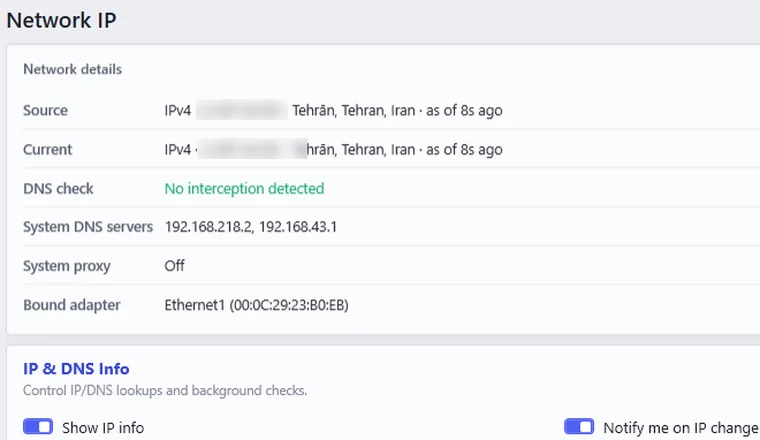
Your exit IP, location, and provider are displayed, and any changes are reported automatically. DNS checks show which servers are actually handling your requests, helping identify DNS leaks and traffic that escapes the tunnel.

Exit IP & DNS Visibility
Traffic

App Traffic & Destinations

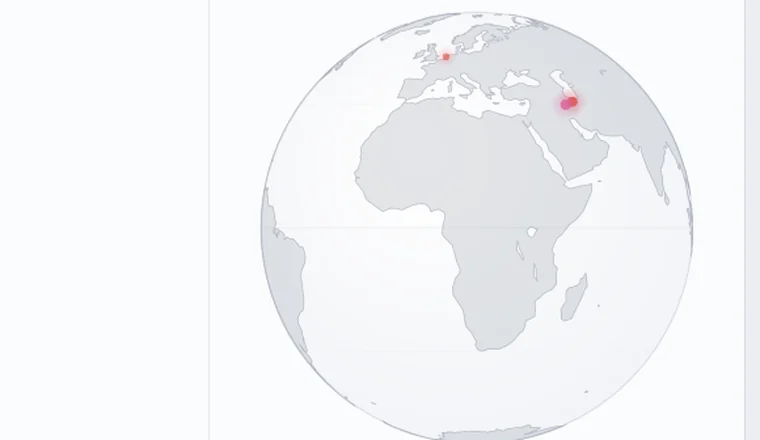
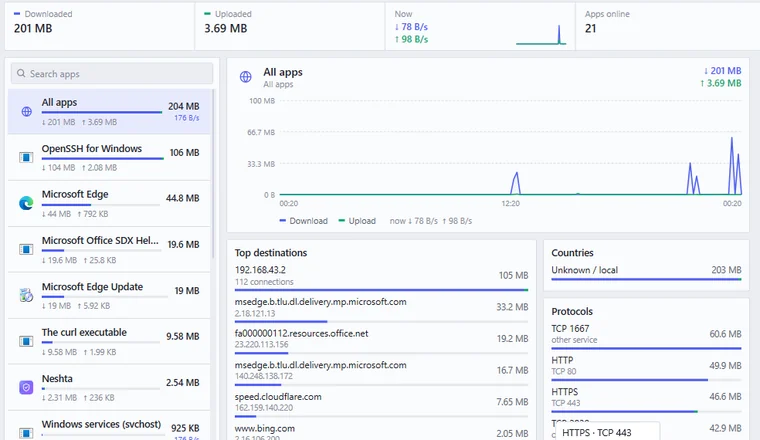
Per-application download and upload activity is tracked in real time and stored locally. The websites, countries, and protocols used by each application can also be viewed.

Neshta monitors traffic volume locally and does not inspect the content of your traffic.

App Traffic & Destinations
Network devices

Who's on your Wi-Fi

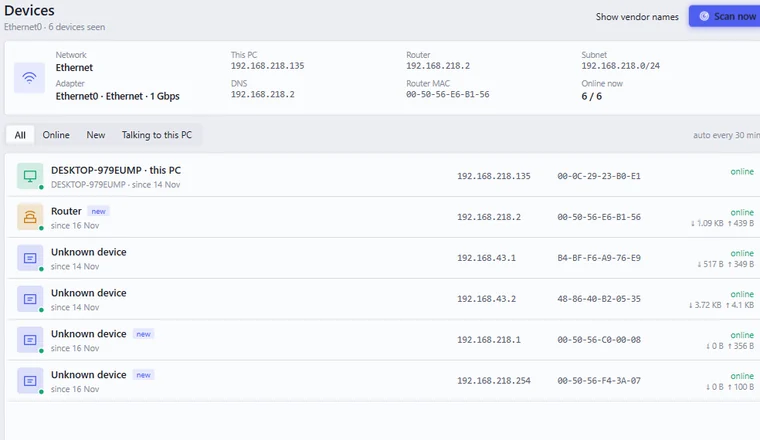
Devices on your Wi‑Fi and local network are automatically discovered and listed. Details such as the device name, manufacturer, IP address, and MAC address are available for each device, while newly detected devices are highlighted automatically. Network Scan refreshes the current network view on demand and helps identify newly connected devices and recent changes.

Who's on your Wi-Fi

Also in Neshta

Profiles

Organize firewall rules into separate profiles and switch between them as needed. Profiles can also be selected automatically based on conditions such as your network, location, or connection state. For example, the right profile can be activated automatically when you arrive at work or connect to a specific network.

Remote control

Manage Neshta remotely through the web portal. Check protection status, pause protection, or update application rules from anywhere. Recent activity and blocked applications remain available even when you’re away from the PC.

Backup Settings

Encrypted backups keep your settings, rules, and profiles available across reinstalls and new devices. Restore your configuration in minutes without rebuilding application rules, profiles, or automations from scratch.

VirusTotal scan

Check unfamiliar applications with your own VirusTotal API key. Scan results, engine detections, and other VirusTotal details are shown alongside the application, helping you make a more informed decision before granting network access.

Start with the Free plan

Windows 10 & 11 (64-bit)Free plan, no card needed