How to block an app from the internet on Windows
Plenty of programs don’t need the internet to do their job: a text editor that keeps sending data home, a game launcher that starts updating in the middle of a session, old software you don’t fully trust. Windows can block them, though it takes a few steps.
With Windows Firewall
Open Start, type wf.msc and press Enter. Choose Outbound Rules on the left and New Rule… on the right. Pick Program, use Browse to find the app’s .exe file and choose Block the connection. Leave Domain, Private and Public ticked, name the rule and press Finish.
That’s fine for one or two apps, but you need to know exactly which file goes online, and many apps have separate helpers and updaters that the rule won’t catch. Windows’ Resource Monitor (resmon) shows which programs are online on its Network tab, but only at that moment, with no history.
With Neshta
In Neshta, apps ask before they go online. The first time a program tries to connect, a small window appears and you choose Allow or Block. You don’t have to hunt for files, since helpers and updaters show up in the list on their own.
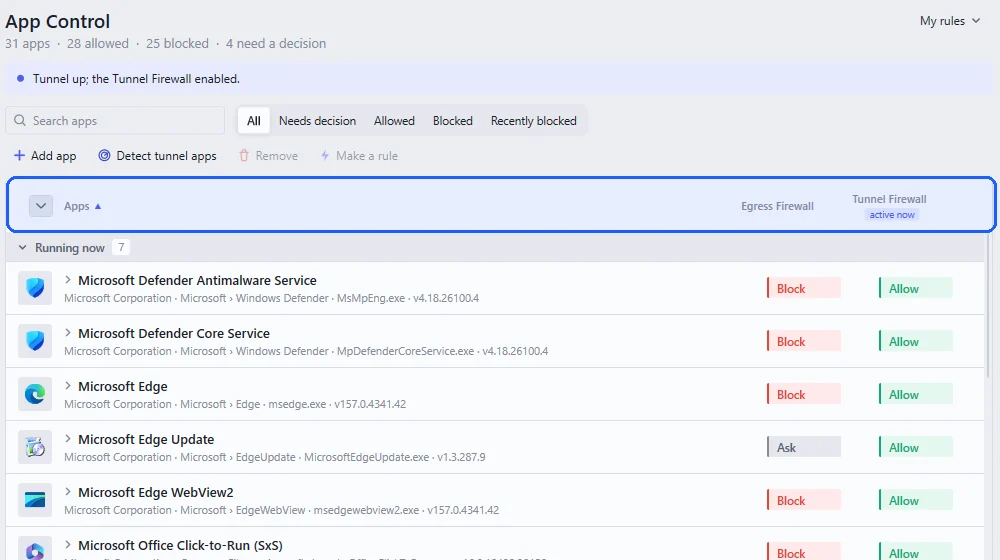
If you use a tunnel, each app gets two rules, one for when the tunnel is down and one for when it’s up. That’s how you can let your browser out only through the tunnel, for example. All your choices sit in one searchable list and can be changed whenever you like, and blocking an app closes its open connections immediately. You can also open an app to see the addresses it connects to and block just one of them, as described in seeing where an app connects.
A good place to start is updaters you’d rather run yourself, apps that work fine offline and background programs you don’t recognise. Nothing is permanent, so it’s fine to start strict and loosen things as you go. If something stops working, the Recently blocked filter shows what was blocked and why.