See where an app connects and block one address
Blocking an app completely isn’t always what you want. Sometimes you only want to know who it talks to, or you need the app but not the ad or tracking server it calls in the background.
In App Control, click the arrow next to an app’s name. You’ll see the addresses it has connected to, each with its country, the traffic sent there and when it was last used. The tabs above the list sort it by the most recent or by the most traffic.
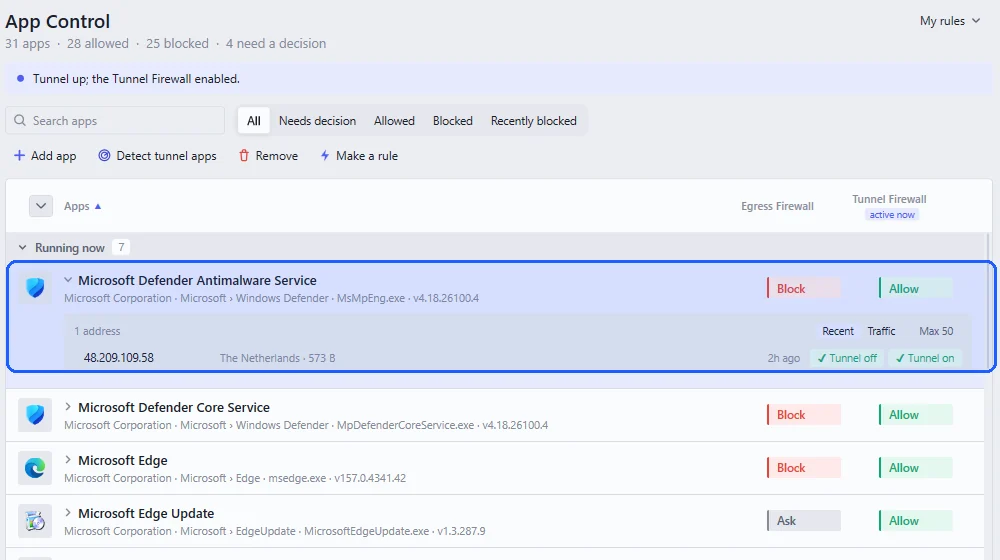
Every address has two switches, one for when the tunnel is down and one for when it’s up. Turning one off blocks only that address, only in that state, and the app keeps working with everything else.
If you do block the whole app, its open connections close at once rather than being left to finish. To see how much the app has used over days or weeks, pick it on the Traffic page, where its busiest destinations are listed as well.