How to find which app is using your data
When your data runs out halfway through the month, or the connection slows down for no clear reason, one app is usually behind it. Often it’s cloud storage syncing a big folder, a game update or a browser tab that keeps playing video.
Windows keeps its own record under Settings → Network & internet → Data usage (inside Advanced network settings on Windows 11), with each app’s use over the last 30 days. It’s a reasonable start, but it only gives totals. It doesn’t say when the data was used or whether it was download or upload, and some background work is lumped together under the system. Task Manager’s Network column only shows the current moment.
To pin it down, you want to know which app used the most today or this week, whether it was downloading or uploading, and when it happened: overnight, right after startup or during a game.
The Traffic page in Neshta
Neshta’s Traffic page records download and upload for every app. Choose a range at the top, anything from an hour to 30 days. The chart shows when usage spiked, and the list beside it ranks apps by how much they used.
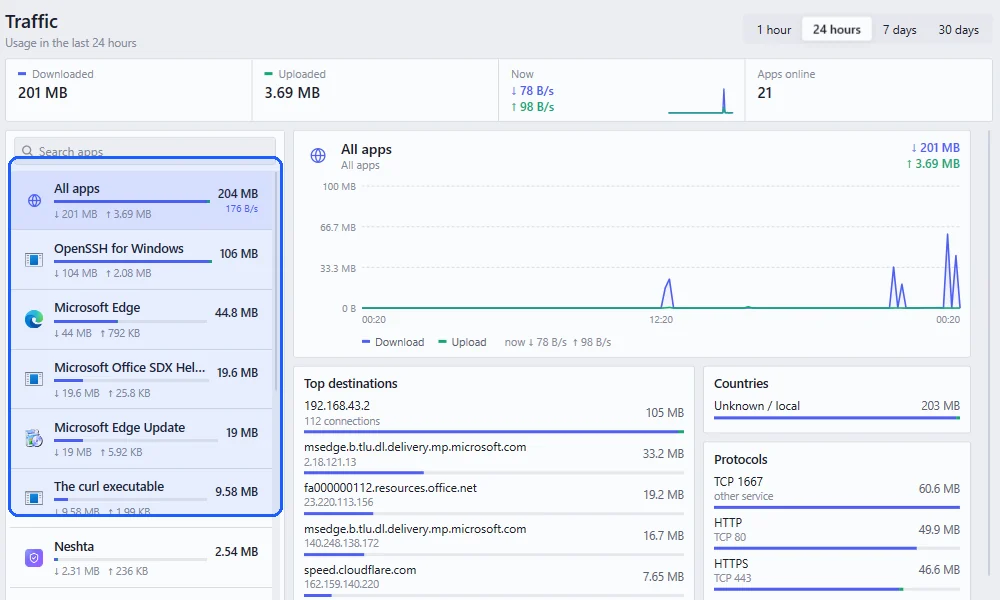
Click an app to get its own chart, with its busiest destinations, countries and protocols underneath, so you can see what it’s talking to.
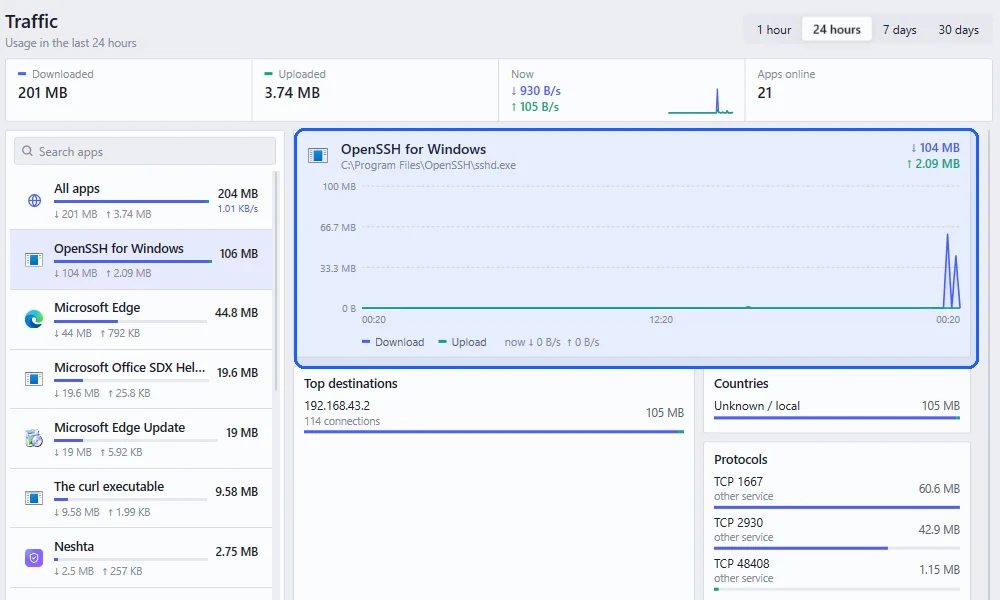
Once you’ve found it, you can block it in App Control or set up a Rule that warns you when it passes a certain amount. Most of the time it turns out to be cloud sync, a game launcher updating in the background, Windows Update, a forgotten video tab or backup software.