How to stop apps using data in the background on Windows
Updaters, launchers, sync tools and telemetry run all day, even for apps you rarely open. On a capped plan or a slow connection, that adds up. Windows has a few gentle ways to cut it down, and a firewall is the strict one.
The gentlest is to mark your connection as metered. Under Settings → Network & internet, open your Wi-Fi or Ethernet network and turn on Metered connection. Windows Update then sticks to essential updates and most Store apps hold off on large downloads. It’s only a request, though, and ordinary desktop programs are free to ignore it.
You can also stop Store apps from running in the background. On Windows 11, open an app’s advanced options under Settings → Apps → Installed apps and set Background app permissions to Never; on Windows 10 the same setting is under Privacy → Background apps. This only covers apps from the Microsoft Store. In Task Manager’s Startup apps tab, disable anything that doesn’t need to start with Windows, since a program that isn’t running can’t use data.
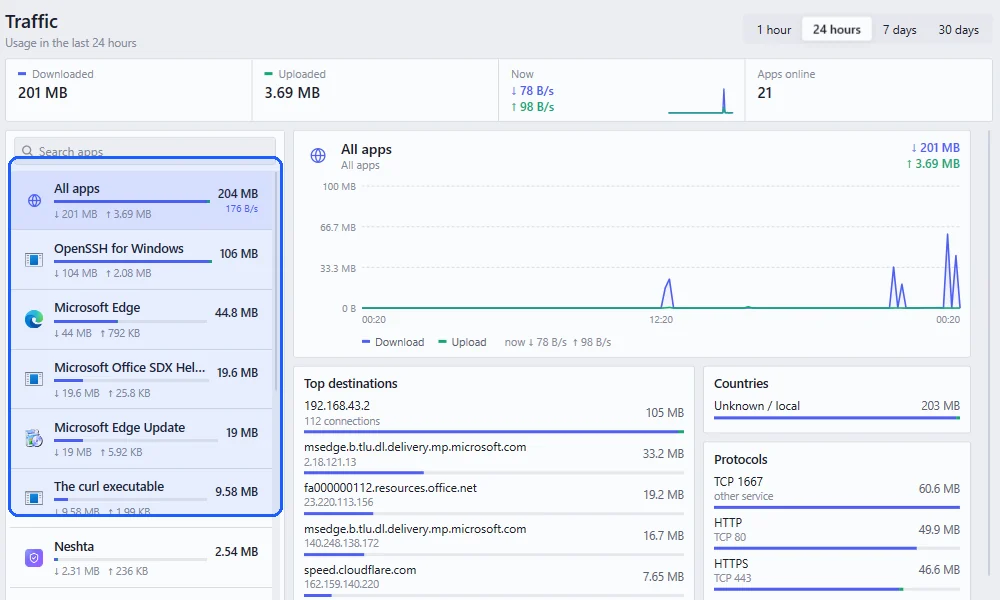
Before you block anything, it helps to know where the data is going. Neshta’s Traffic page shows each app’s usage live and over time, and finding which app is using your data goes through it.
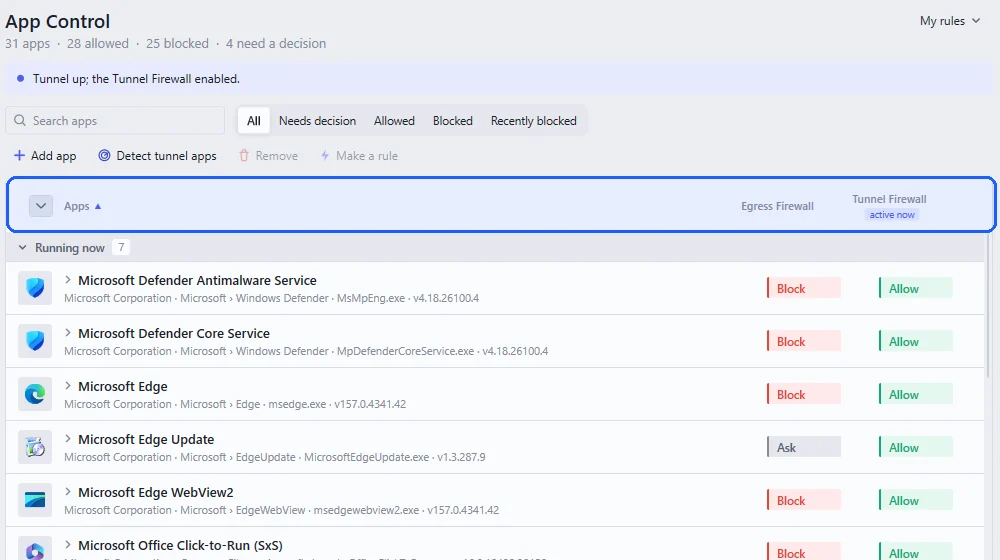
The only sure way to keep a desktop program offline is a firewall rule. In App Control you can block an app completely or let it out only through the tunnel. New apps ask before they connect, so nothing slips through unnoticed, and your rules stay in place when apps update.
Bear in mind that blocking an app’s updater also stops its updates. Keep your browser and security software allowed so they stay up to date.