Using public Wi-Fi safely on a Windows laptop
Public Wi-Fi is convenient, but you share it with strangers and have no idea who runs it. Most sites use HTTPS now, so what you type is encrypted, yet a few risks remain.
Anyone can name a hotspot “Airport Free WiFi”, so ask the staff which network is theirs. On a shared network your laptop is also visible to everyone else, and other devices can try its shared folders and services. Then there’s the tunnel. Hotel and café networks often have a sign-in page and drop out from time to time, and every drop lets apps quietly reconnect without the tunnel.
When you connect
When Windows asks whether your PC should be discoverable on the network, choose No so the network is treated as Public. If you’re unsure, open the network under Settings → Network & internet → Wi-Fi and check that Public network is selected. It’s also worth turning off file and printer sharing for public networks, under Control Panel → Network and Sharing Center → Change advanced sharing settings.
Finish the hotspot’s sign-in page before you connect the tunnel. Don’t install anything a hotspot page asks for, and look at the address bar before you type a password anywhere.
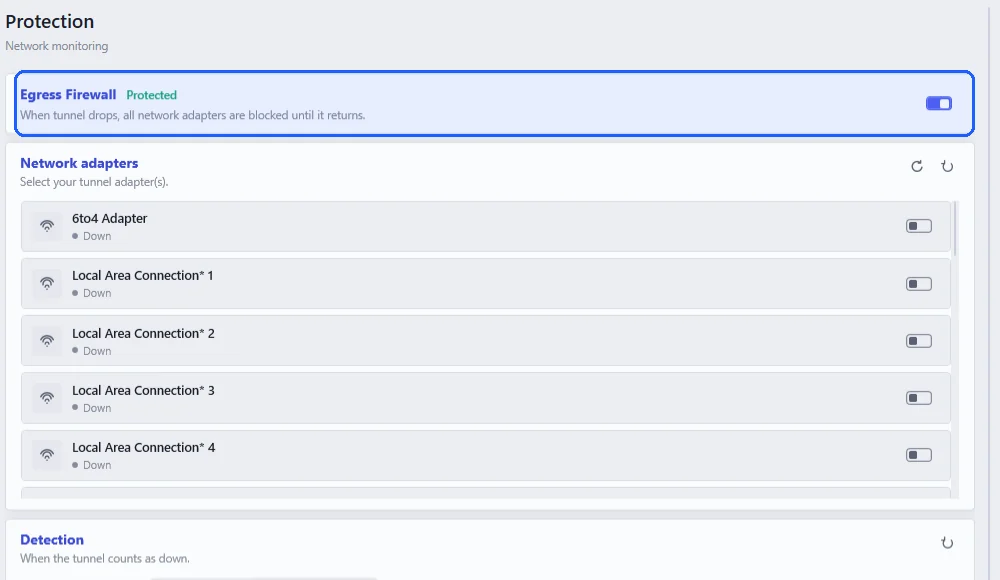
With Neshta’s Egress Firewall on, a dropped tunnel no longer means apps fall back to the hotspot; traffic stays blocked until the tunnel reconnects. For the sign-in page itself, allow your browser in the Egress Firewall column for a moment, then block it again.
If you work from cafés or travel a lot, a rule can take care of this by blocking sync apps on public Wi-Fi and letting them back on at home. There’s an example in building a rule, step by step.
When you leave, have Windows forget the network (Wi-Fi → Manage known networks) so it won’t join a fake one with the same name later.