Building a rule, step by step
The easiest way to learn Rules is to build one. This example pauses OneDrive and shows a notice whenever you join a café’s Wi-Fi, then lets it sync again on any other network.
Open Rules, make sure Use rules is on, and press New rule. A list of templates opens, such as blocking when the tunnel drops, reacting to a new exit country or running on a schedule. They’re half-finished rules that save a few clicks, but for this one pick the empty rule.
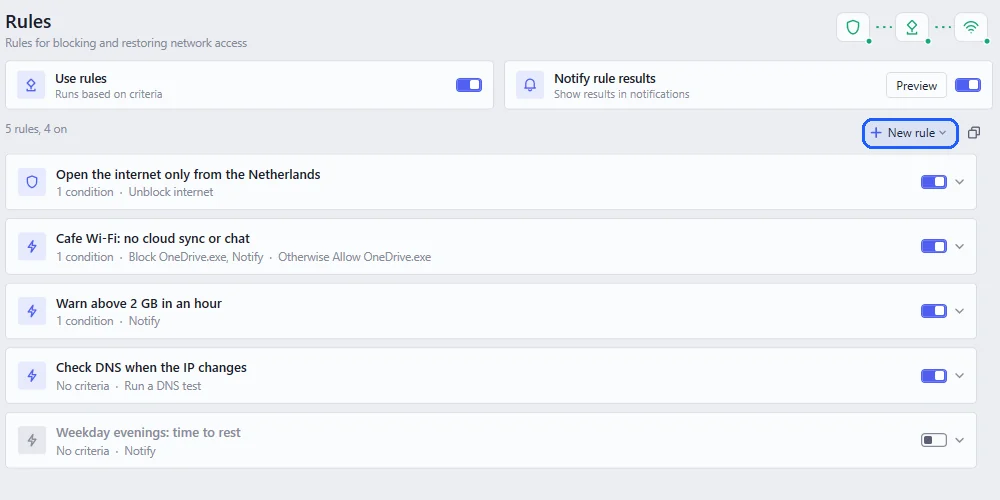
Give the rule a name you’ll recognise later. Under When, choose “Network changes” so the rule is checked every time you switch Wi-Fi. Then, under If, add a network condition: connected to Wi-Fi, with the café’s network name. Next to every condition Neshta shows whether it’s true right now, which makes testing much easier. If you need more than one condition, you can group them.
Under Then, add two actions: Block an app, with OneDrive selected, and Notify, with a message like “Public Wi-Fi: sync paused”. Under Otherwise, add Allow an app for OneDrive, so it goes back to normal on other networks. For each app you also choose whether the action applies while the tunnel is down, up or both.
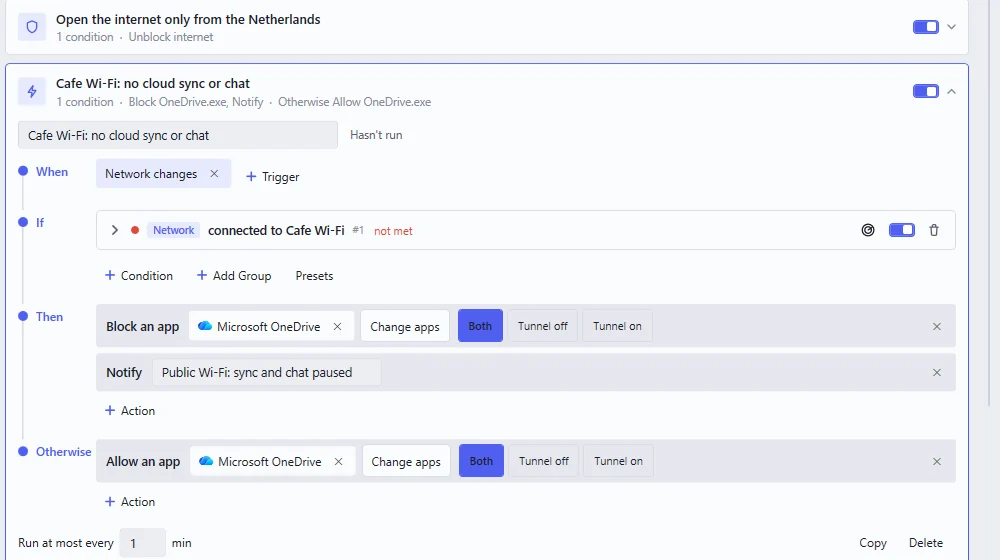
At the bottom, Run at most every sets how long the rule waits before it can run again. If your laptop flips between networks a lot, a minute or two keeps the notices from piling up.
The rule takes effect right away. To try it, join another network and come back. With Notify rule results on, you’ll see a short notice each time it runs.