Profiles: separate app rules for work, home and travel
The list in App Control is really a profile, and you can have more than one. You might keep a relaxed one for home, one for work where only work tools connect, and a strict one for travelling.
In App Control, open Profiles from the menu at the top. Your profiles are listed on the left, with the one in use marked Active. Press New to add another.
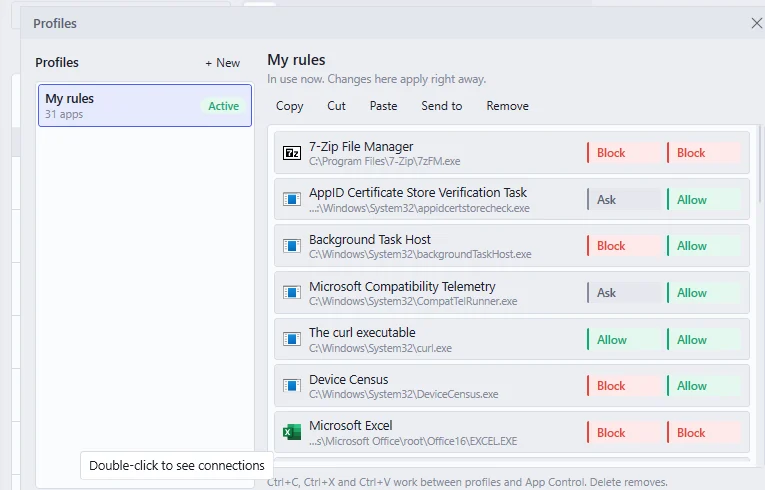
Open a profile to see its apps and edit their rules right there. Copy, Cut and Paste move apps between profiles, and Ctrl+C and Ctrl+V work between profiles and App Control too. Send to moves an app straight into another profile.
Pressing Use makes the selected profile active. Apps listed in it take its rules, and any app it doesn’t list goes back to asking.
You can also let Neshta switch for you. A rule with your office Wi-Fi as the condition and “Switch profile” as the action turns on your work profile as soon as you arrive. Building a rule, step by step shows how rules are made.
Profiles are part of Pro.