Setting up tunnel detection
The Egress Firewall can only react if Neshta notices the tunnel dropping. For most tunnel apps, picking the adapter is all it takes. Some, though, use more than one adapter or create a new one with a different name each time, and that’s what these settings are for.
In Protection, under Network adapters, switch on your tunnel’s adapter. If you’re not sure which it is, disconnect and reconnect the tunnel and watch which adapter changes state.
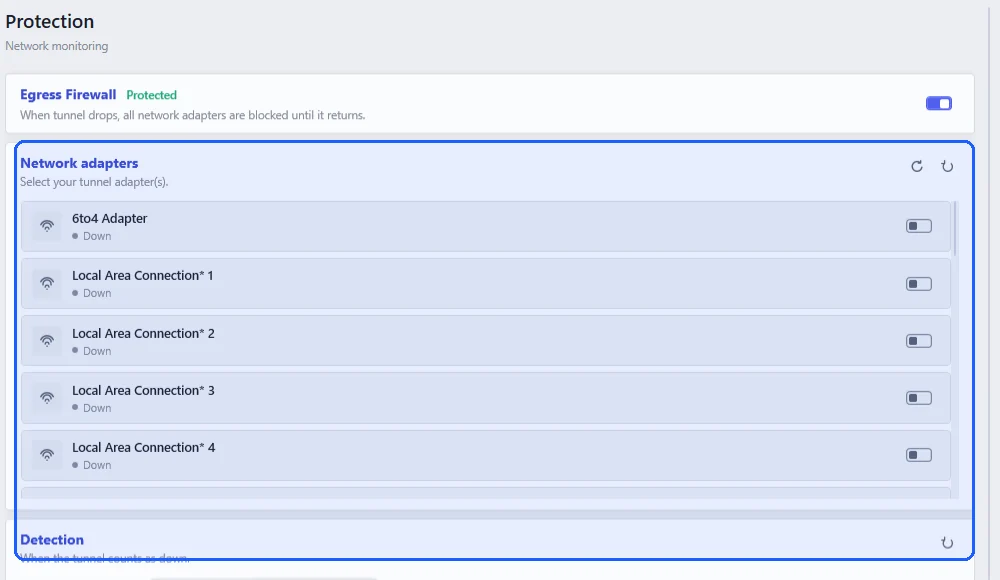
Further down, Detection decides when the tunnel counts as down. If you picked several adapters, Trigger logic sets whether all of them need to be connected or whether one is enough. For most tunnels, “Any one is enough” is the right choice.
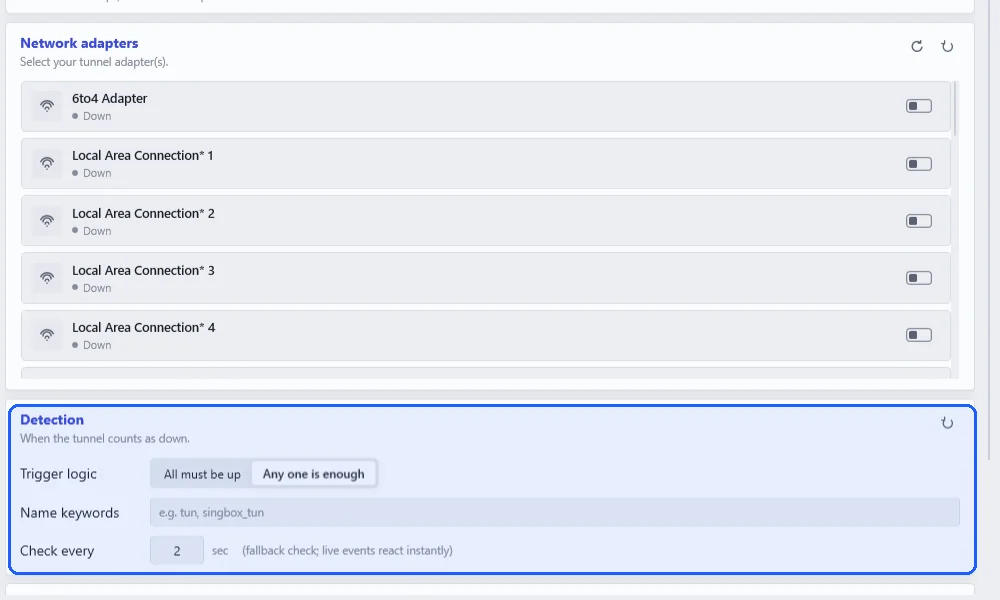
If your tunnel app creates a fresh adapter with a different name every time, type part of that name under Name keywords, for example tun or singbox_tun. Neshta will treat any adapter whose name contains it as the tunnel.
Windows tells Neshta about adapter changes as they happen. Check every is only a backup in case Windows stays quiet, and the default of 2 seconds is fine.
Once it’s set, start a download and disconnect the tunnel. If the download doesn’t stop right away, check the adapter or the keyword again.