What an IPv6 leak is and how to stop it on Windows
Many tunnel apps only carry IPv4. If your connection also has IPv6, Windows may send some traffic over IPv6 directly, outside the tunnel, and sites see your real address even though the tunnel is connected.
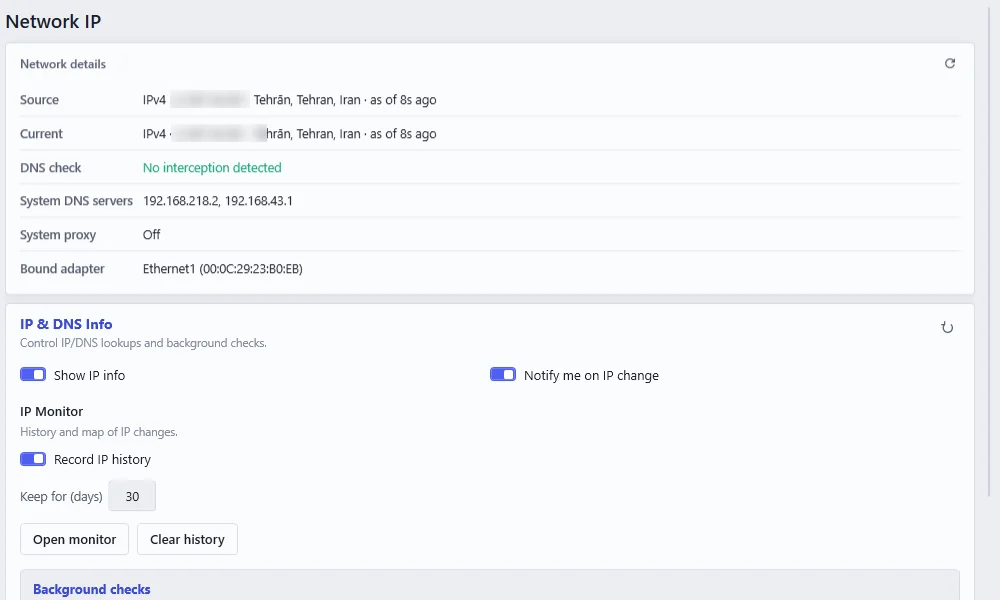
Checking takes a minute. Connect your tunnel, open a site like test-ipv6.com or the Network IP page in Neshta, and see whether you have an IPv6 address. If you do and it belongs to your own internet provider, you have a leak. If there’s none, or it belongs to the tunnel, you’re fine for now. It’s worth checking again after you change networks, since new Wi-Fi or a router update can turn IPv6 on.
Turning IPv6 off
Press Win + R, type ncpa.cpl and press Enter. Right-click your Wi-Fi or Ethernet adapter, open Properties and untick Internet Protocol Version 6 (TCP/IPv6). This works, but it has to be done for every adapter, some Windows features rely on IPv6, and a driver update can quietly turn it back on.
The other way is a firewall that treats both the same. Neshta’s Egress Firewall blocks IPv4 and IPv6 alike when the tunnel drops and keeps both blocked until it’s back. App Control rules apply to both as well, so there’s no need to turn IPv6 off.
An IPv6 leak often comes with a DNS leak, which you can test for in checking your public IP and DNS.