The IP Monitor: your IP history on a map
Your public IP changes more often than you’d think: when the tunnel connects or drops, when it moves to another server, when you switch from Wi-Fi to mobile data. The IP Monitor keeps a record of each change so you can look back later.
On the Network IP page, turn on Record IP history and choose how many days to keep. If you also want to hear about each change as it happens, turn on Notify me on IP change. Then press Open monitor.
The monitor shows a map with a table beside it. Each IP is a dot in its country, and the table lists them with the time, type, IP and country. The type tells you whether it was your own connection (source), the tunnel’s exit or a DNS leak, and the chart above the table counts each one.
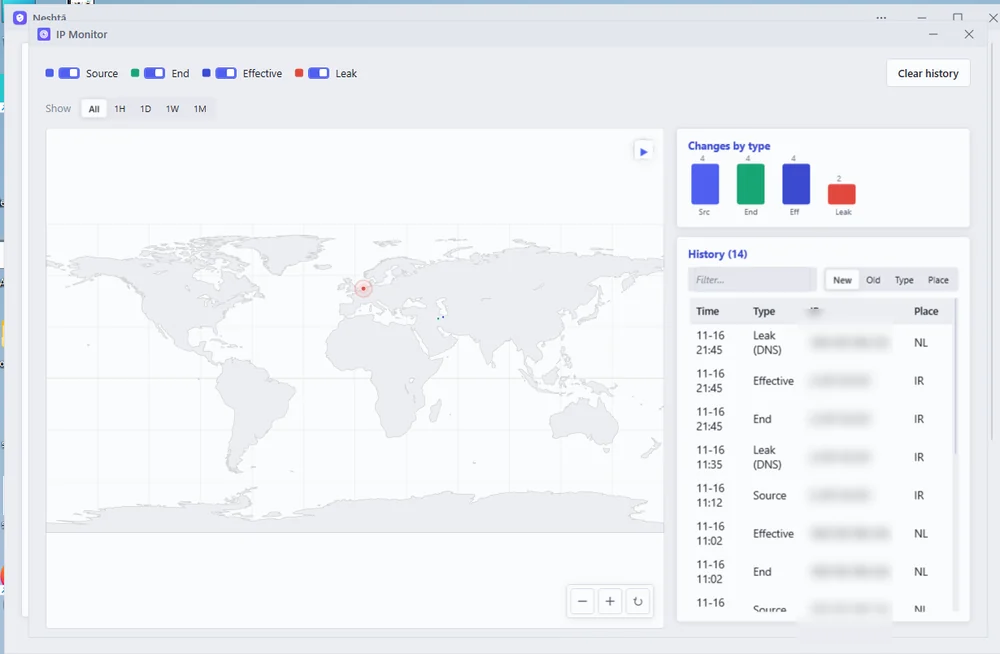
The switches at the top show or hide each type on the map, and the range buttons narrow the history to the last hour, day, week or month. A leak row means a DNS lookup went around the tunnel; checking your public IP and DNS explains what to do about it.
The history is kept on your own PC, for 7 days on Free and a year on Pro.