How to check open ports and listening programs on Windows
A program that listens on a port is waiting for other computers to connect to it. File sharing, Remote Desktop, game servers and some background services all work this way, and each one is a way into your PC, so it’s worth knowing which are open.
Open PowerShell and run:
Get-NetTCPConnection -State Listen | Sort-Object LocalPort |
  Select-Object LocalAddress, LocalPort, @{n='Program';e={(Get-Process -Id $_.OwningProcess).ProcessName}}
For each port you’ll see the address it listens on and the program behind it. An address of 127.0.0.1 or ::1 means only your own PC can connect, which is harmless. 0.0.0.0 or :: means anything on any network you’re connected to can try. The older netstat -ano gives the same list with process numbers, which you can match on the Details tab of Task Manager.
A few ports turn up on almost every Windows PC. 135, 139 and 445 belong to file and printer sharing, 3389 is Remote Desktop, 5353 and 5355 are used to find names on the local network, and 7680 is Delivery Optimization, which shares Windows updates between PCs.
Closing what you don’t use
File sharing can be turned off for public networks under Network and Sharing Center → Change advanced sharing settings. If you never use Remote Desktop, switch it off in Settings → System → Remote Desktop. Delivery Optimization is under Settings → Windows Update → Advanced options, where you can stop it downloading from other PCs. For programs you installed yourself, look for a “server” or “sharing” option, or remove the program if you don’t need it.
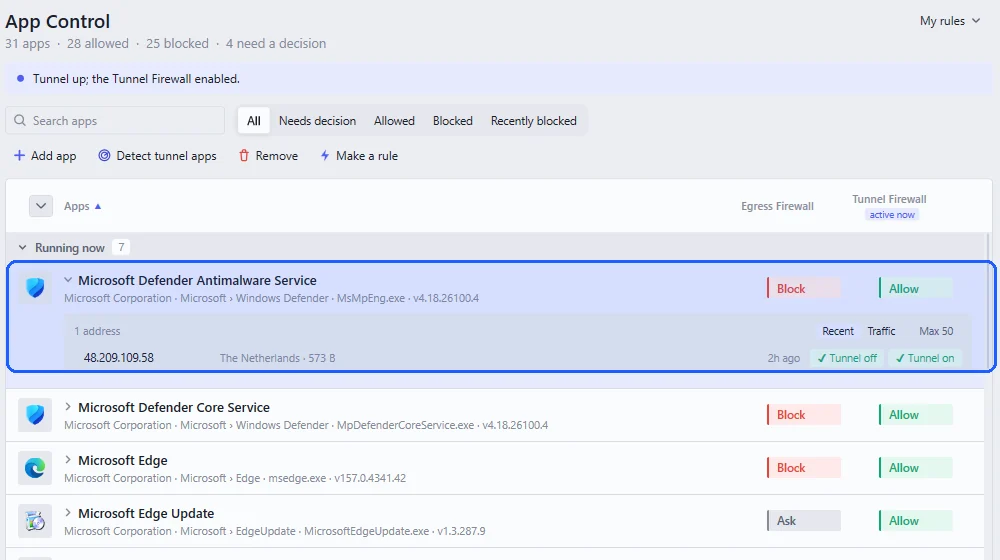
Windows Firewall decides what’s allowed in. Neshta looks after the other direction, what goes out. In App Control you decide which programs can reach the internet at all, and opening an app shows its open connections. A program that can’t connect out is of little use to anyone who finds a way into your PC.